

The best VALORANT settings are not about making the game look as detailed as possible. In competitive matches, stable FPS, clear visibility, consistent mouse control, and reliable audio are usually more useful than extra graphical effects.
That is why many competitive setups prioritize performance and simplicity. Lower graphics settings can reduce visual clutter and improve frame-rate stability, while the right sensitivity, crosshair, minimap, and audio setup can make important information easier to process.
There is no single perfect configuration for every player or PC, but the settings below provide a strong starting point.
Best VALORANT Settings at a Glance
|
Setting |
Recommended Starting Point |
|
Display Mode |
Fullscreen |
|
Resolution |
Native resolution |
|
Multithreaded Rendering |
On, if supported |
|
Material Quality |
Low |
|
Texture Quality |
Low |
|
Detail Quality |
Low |
|
UI Quality |
Low |
|
VSync |
Off |
|
Anti-Aliasing |
None or MSAA 2x |
|
Anisotropic Filtering |
4x–8x |
|
Bloom |
Off |
|
Distortion |
Off |
|
Cast Shadows |
Off |
|
Mouse DPI |
800 as a starting point |
|
eDPI |
Around 200–320 as a starting range |
|
HRTF |
On with stereo headphones |
|
Minimap Vision Cones |
On |
|
Keep Player Centered |
Off |
Treat these as baseline settings rather than strict rules. Your hardware, monitor, mousepad space, and aiming preferences should determine the final setup.
Best VALORANT Video Settings
Display and Resolution Settings
Fullscreen is a sensible starting choice for competitive VALORANT because it keeps the game focused on performance without the convenience features of windowed modes.
For resolution, start with your monitor's native resolution. On a 1080p display, that will commonly be 1920×1080.
Lowering resolution can help weaker systems produce more FPS, but it also reduces image clarity. If your PC already delivers a stable frame rate, there is little reason to sacrifice visibility simply to make the FPS counter larger.
The priority should be consistent performance during fights, especially when multiple abilities and players are on screen.
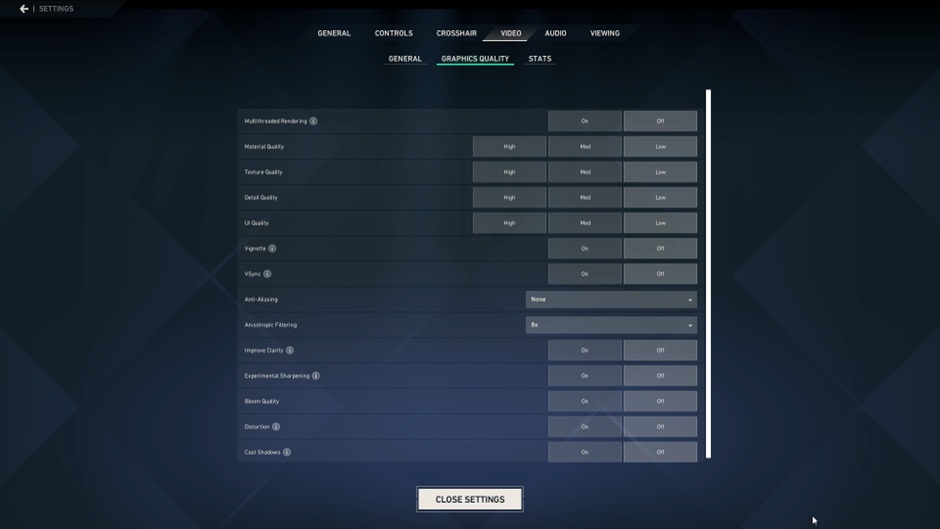
Graphics Quality Settings
For a performance-focused competitive setup, try:
- Multithreaded Rendering: On, if available and supported
- Material Quality: Low
- Texture Quality: Low
- Detail Quality: Low
- UI Quality: Low
- Vignette: Off
- VSync: Off
- Anti-Aliasing: None or MSAA 2x
- Anisotropic Filtering: 4x or 8x
- Bloom: Off
- Distortion: Off
- Cast Shadows: Off
Low settings are popular because VALORANT does not require high visual quality to understand what is happening in a fight.
VSync is generally left off in competitive setups because players usually want to minimize additional latency. Bloom, Distortion, and Vignette can also be disabled if you prefer a cleaner presentation.
If you are experimenting with different setups or starting over with an established collection, you may also encounter marketplaces listing valorant accounts for sale. That is separate from optimizing your settings, so consider the account contents, platform rules, and potential account-related risks independently.
Best Settings for Higher FPS and Visibility
Do not optimize VALORANT around the highest FPS number you can achieve while standing still in the Practice Range.
What matters more is whether your frame rate remains stable during actual matches.
If you experience noticeable drops, lower demanding graphics options before reducing resolution. Close unnecessary background programs and make sure your display is configured to use its intended refresh rate.
Your goal is a setup that remains responsive and visually clear during gunfights rather than one that produces impressive benchmark numbers under ideal conditions.
Best VALORANT Mouse and Sensitivity Settings
DPI and In-Game Sensitivity
There is no universally best sensitivity.
Lower sensitivities are common in tactical shooters because they can provide more control for small adjustments, but going too low can make turning and clearing angles uncomfortable.
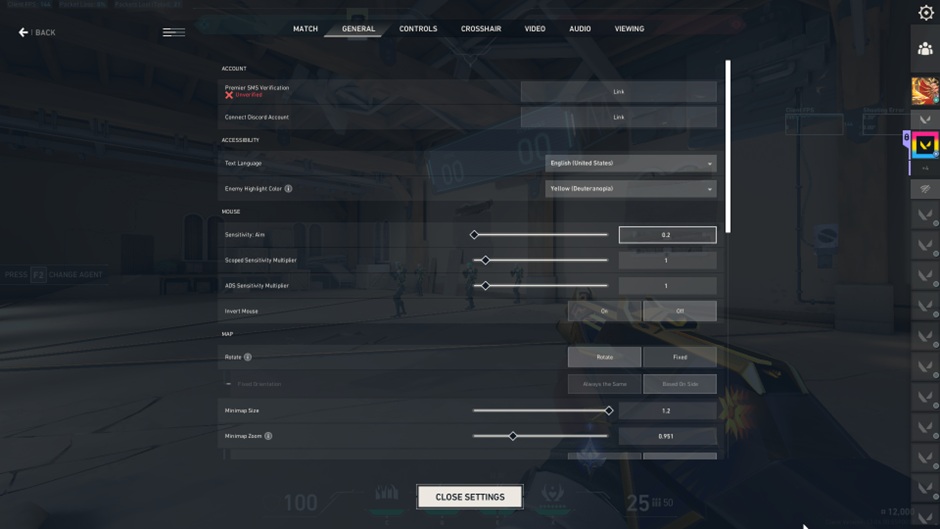
If you need a starting point, 800 DPI is easy to work with. Pairing it with an in-game sensitivity of roughly 0.25 to 0.40 gives an eDPI between 200 and 320.
For example:
800 DPI × 0.30 sensitivity = 240 eDPI
This is a starting range, not a target every player needs to copy.
How to Find the Right eDPI
eDPI lets you compare sensitivity across different mouse DPI settings.
The formula is:
eDPI = Mouse DPI × In-Game Sensitivity
Once you choose a starting sensitivity, test it in the Practice Range and actual matches.
If you regularly move past your target when making small adjustments, your sensitivity may be too high. If you struggle to turn comfortably or clear nearby angles, it may be too low.
Make small adjustments instead of changing your sensitivity dramatically after every bad game. Consistency gives you time to develop muscle memory around the setup.
Best VALORANT Crosshair Settings
What Makes a Good Competitive Crosshair?
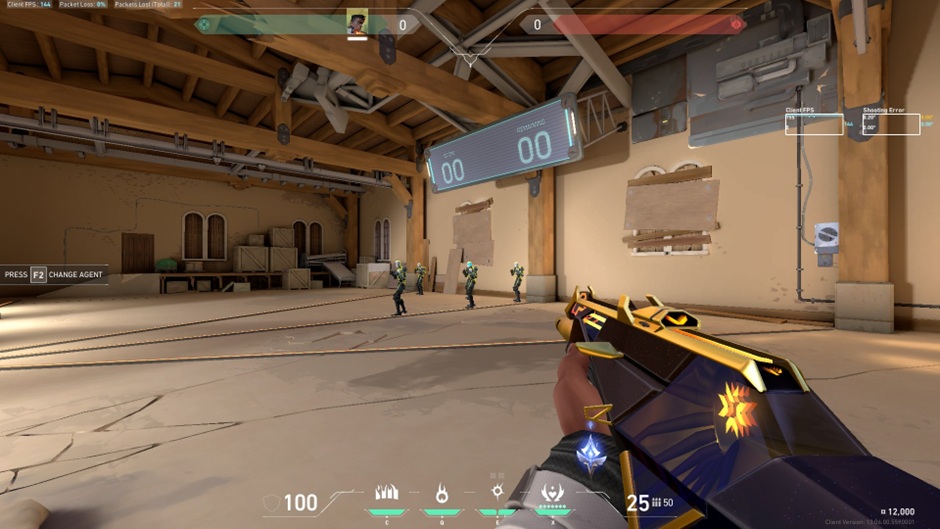
A competitive crosshair should be easy to identify immediately without hiding too much of your target.
Small static crosshairs are popular because they provide a consistent reference point and keep the center of the screen relatively clean.
A simple starting configuration is:
- Center Dot: Off
- Inner Lines: On
- Outer Lines: Off
- Movement Error: Off
- Firing Error: Off
- Outlines: Optional
Colors such as cyan, green, or white can work well, but visibility changes depending on the map and your personal eyesight.
Adjust line length, thickness, and gap until you can see the crosshair instantly without covering an enemy's head at longer distances.
Should You Copy a Pro Crosshair?
A professional player's crosshair code can be useful as a starting point, but copying it does not make it objectively better for you.
Pro players use many different crosshairs, sensitivities, resolutions, and peripherals. Test their configurations if you are curious, then keep only the elements that improve your own consistency.
Best VALORANT Minimap Settings
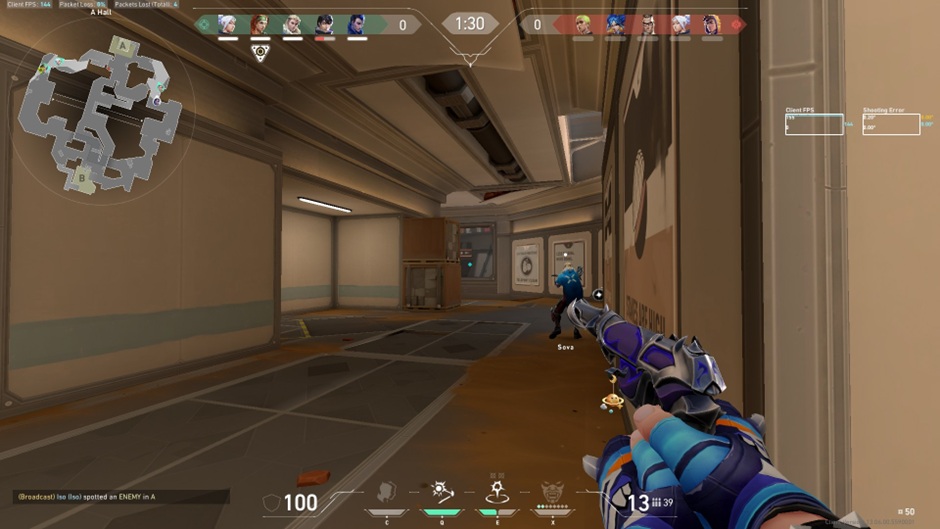
The minimap provides information about teammates, spotted enemies, utility, and areas of the map your team is covering.
A useful starting configuration is:
- Rotate: On
- Keep Player Centered: Off
- Minimap Size: Around 1.1
- Minimap Zoom: Around 0.9
- Minimap Vision Cones: On
- Show Map Region Names: Always
Turning Keep Player Centered off can make it easier to see more of the map instead of constantly shifting the view around your character.
Vision cones are also useful because they help you understand what teammates can currently see and where uncovered areas may exist.
Adjust size and zoom based on your monitor and resolution. The minimap should provide enough information at a glance without covering too much of your screen.
Best VALORANT Audio Settings
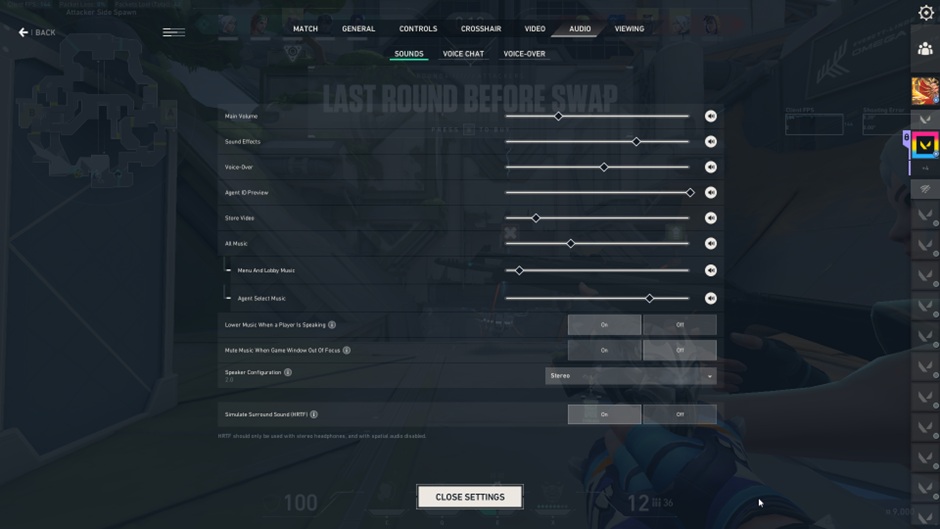
Audio is extremely important in VALORANT because footsteps, reloads, weapon sounds, and abilities can reveal information before an opponent appears on screen.
With stereo headphones, HRTF is worth testing for directional audio.
Keep sound effects clearly audible and reduce music or other non-essential audio if it makes important game sounds harder to identify.
Avoid simply maximizing every volume slider. The goal is clarity, not loudness.
Should You Copy Pro VALORANT Settings?
Pro settings are useful references, but they should not be treated as universal presets.
A professional player may use a low sensitivity because of a large mousepad, a particular resolution because of years of familiarity, or specific graphics settings based on their tournament hardware.
Copying those numbers without the same context may make your setup less comfortable.
Use professional configurations to find sensible starting points, then adjust them around your own hardware and aiming style.
Final Tips for Optimizing Your VALORANT Settings
The best VALORANT settings prioritize consistency.
Start with low graphics settings, native resolution, Fullscreen mode, VSync off, and unnecessary visual effects disabled. Then spend more time refining the settings that directly affect how you play: mouse sensitivity, crosshair, minimap, and audio.
Do not change everything at once. Adjust one area, test it across several matches, and decide whether it actually improves your experience.
Settings cannot replace positioning, crosshair placement, communication, or aim practice. But a stable setup removes unnecessary distractions and gives you a consistent environment in which those skills can improve.